How to Activate eSim on iPhone?
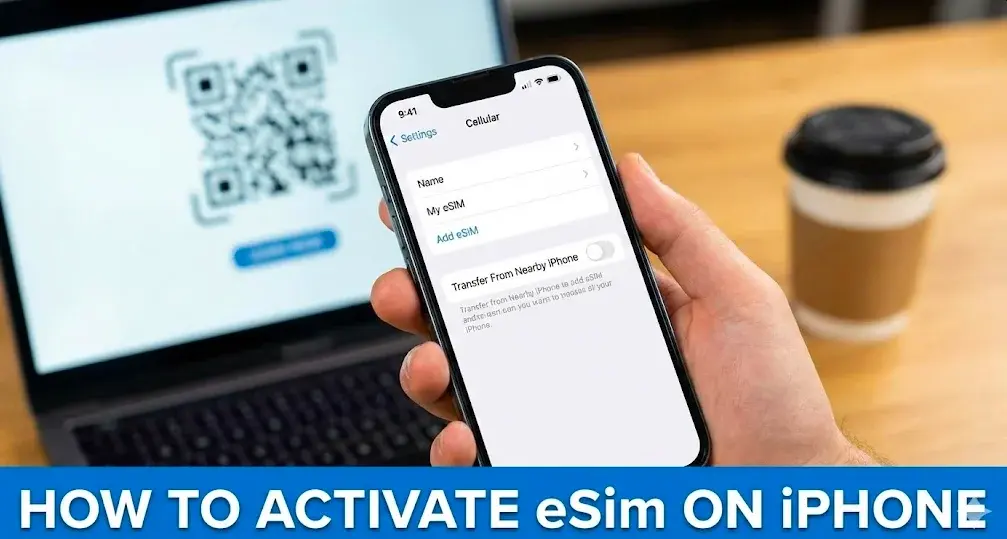
To activate an eSIM on iPhone, go to Settings > Cellular > Add eSIM, then scan a QR code from your carrier or use carrier activation. The process takes 2-5 minutes and requires WiFi or existing cellular connection.
| Step | Action | Notes |
|---|---|---|
| 1 | Open Settings > Cellular | Or “Mobile Data” in some regions |
| 2 | Tap Add eSIM | May show as “Add Cellular Plan” |
| 3 | Scan QR Code or use Carrier Activation | QR code from carrier email/website |
Which iPhones Support eSIM?
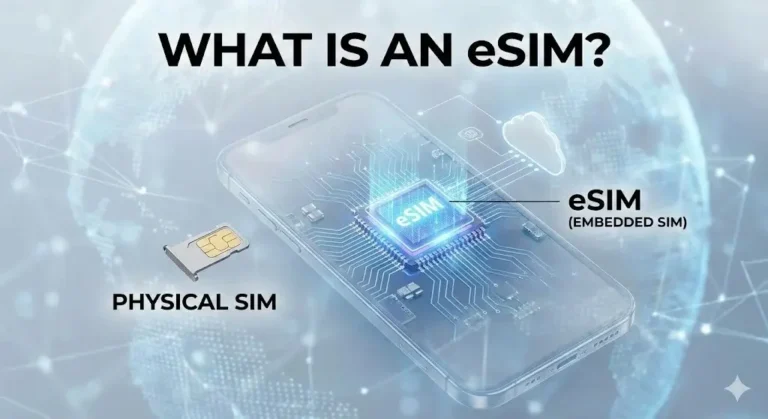
All iPhones from iPhone XR/XS (2018) onward support eSIM. Key compatibility details:
- iPhone XR, XS, XS Max: 1 eSIM + 1 physical SIM
- iPhone 11, 12 series: Dual SIM (1 eSIM + 1 nano-SIM)
- iPhone 13 and newer: Dual active eSIMs supported
- iPhone 14, 15, 16, 17 (US models): eSIM-only, no physical SIM tray
- iPhone SE (2nd & 3rd gen): eSIM supported
How to Activate eSIM via QR Code?
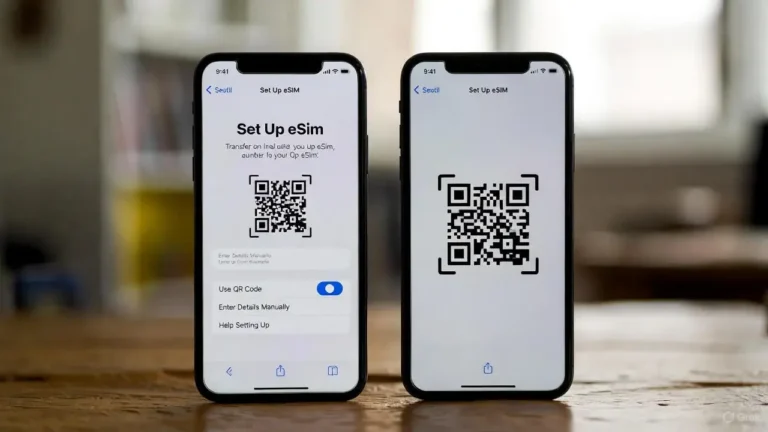
The QR code method is the most common activation approach used by 99% of eSIM providers:
- Go to Settings > Cellular > Add eSIM
- Tap Use QR Code
- Point camera at QR code or select saved image from Photos
- Tap Continue when “Activate eSIM” appears
- Tap Add Cellular Plan to complete installation
Pro tip: On iOS 17.4+, tap and hold a QR code in email or browser to directly add eSIM.
How to Use Carrier Activation?
Carriers like Verizon, AT&T, and T-Mobile offer automatic activation:
- Look for notification: “Carrier Cellular Plan Ready to Be Installed”
- Tap the notification or find it in Settings > Cellular
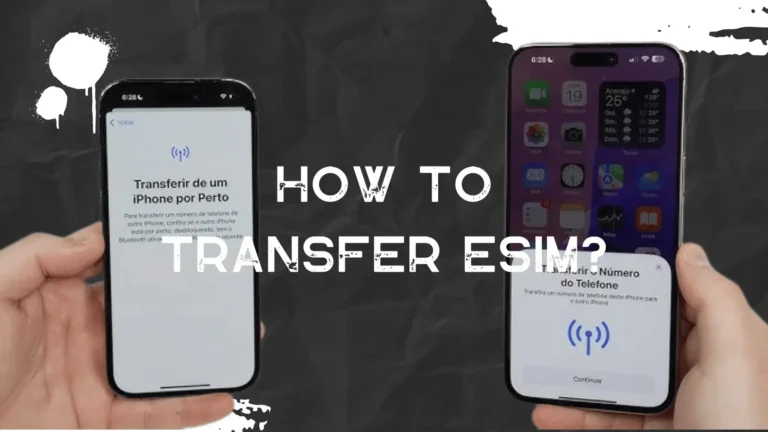
- Tap Continue > Convert to eSIM if converting from physical SIM
- Wait 2-3 minutes for activation to complete
For carrier app activation, download your provider’s app from the App Store and follow in-app instructions.
How to Verify eSIM Is Active?
Three quick verification methods:
- Check Settings: Go to Settings > Cellular – carrier name and number should display
- Status bar: Look for signal bars with LTE or 5G indicator
- Test call: Make a phone call to confirm voice connectivity
What Are the APN Settings for eSIM?
Most carriers auto-configure APN settings. If manual configuration is needed:
- Go to Settings > Cellular
- Tap your eSIM line name
- Select Cellular Data Network (if visible)
- Enter APN provided by carrier
If the APN menu is hidden, the carrier manages settings automatically. Restart the device or reinstall the eSIM if data isn’t working.
Can iPhone Use Dual eSIM with Two Carriers?
Yes, iPhone 13 and newer support dual active eSIMs simultaneously. Requirements:
- Device must be unlocked (check Settings > General > About > Carrier Lock)
- Enable “Allow Cellular Data Switching” to receive calls on secondary line during active calls
- Set default line for calls, messages, and data in Settings > Cellular

Tasnima Tabassum Ema is the Founder and Lead Data Analyst at eSIM Expart. Driven by her own costly roaming nightmares, she built the site to save fellow travelers money. She specializes in rigorous, real-world testing and calculating the true cost per Gigabyte ($/GB) to ensure you always get the cheapest, most reliable connection.