Does iPhone 13 Have eSim?
Yes, iPhone 13 has eSIM support, and it can run Dual SIM in two ways: nano‑SIM + eSIM, or two eSIMs active at the same time (a capability available on iPhone 13 models). This makes iPhone 13 a strong option for keeping two numbers (work + personal) or pairing a home line with a travel eSIM.
Quick summary (2026)
| Question | Short answer | What to do next |
|---|---|---|
| Does iPhone 13 support eSIM? | Yes on iPhone 13 series. | Check “Add eSIM” in Settings. |
| Can iPhone 13 use two eSIMs? | Yes: Dual SIM with two eSIMs is supported. | Keep two numbers without a physical SIM. |
| Any exceptions? | Some region-specific variants may not offer eSIM. | Verify model/region before buying. |
Does iPhone 13 have eSIM?
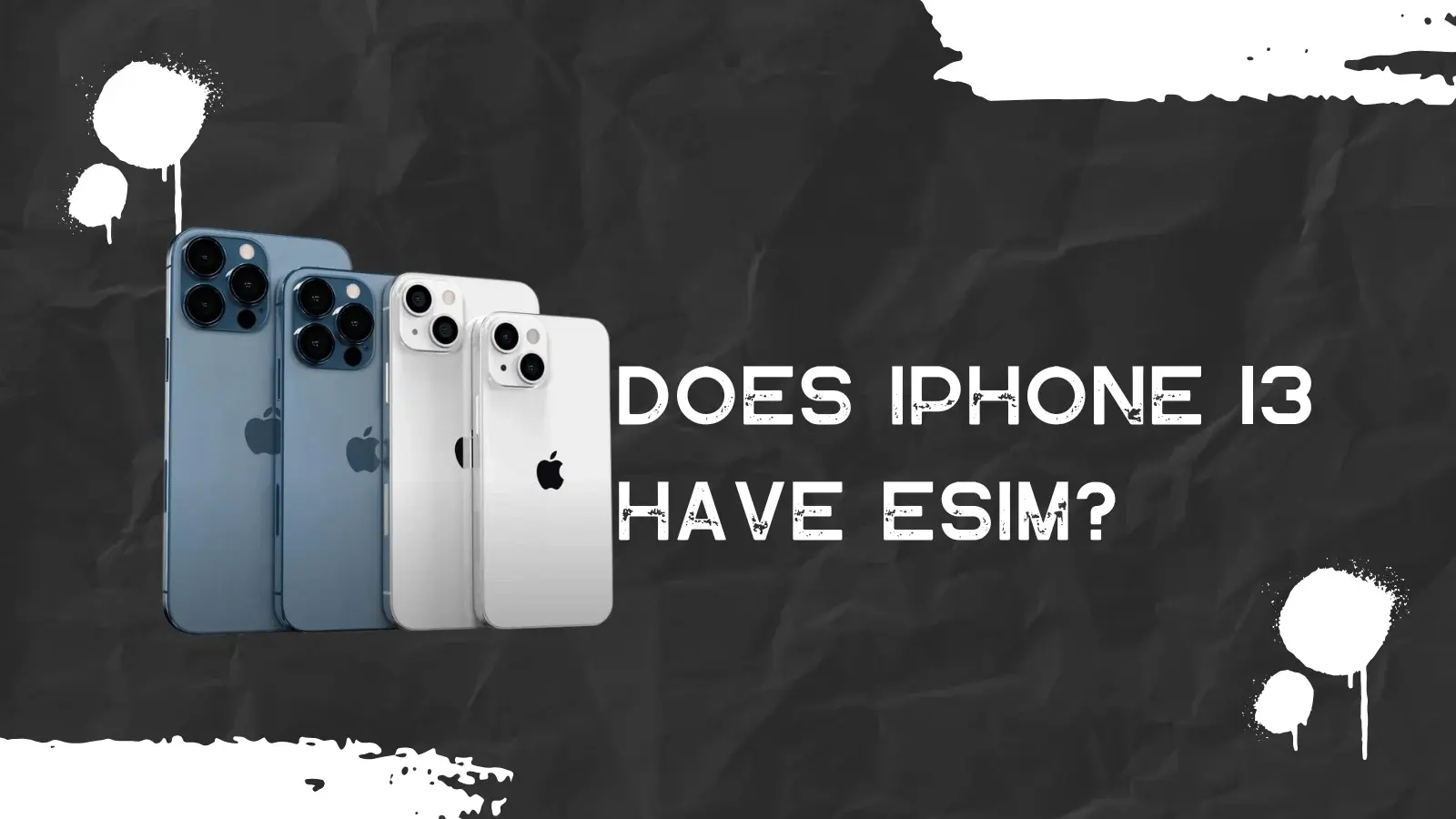
All iPhone 13 family devices (13 mini, 13, 13 Pro, 13 Pro Max) include eSIM capability. In real-world use, eSIM availability still depends on carrier support and whether the device is locked or restricted by the selling carrier.
Can iPhone 13 run Dual SIM with eSIM?
iPhone 13 supports Dual SIM with:
- Two eSIMs active simultaneously, or
- One physical nano‑SIM + one eSIM
This flexibility is useful if you want two active lines while traveling, running ads/verification numbers, or separating business and personal communications.
Which iPhone 13 models may not support eSIM?
Some country/region variants can differ, and a few markets have historically sold iPhones with Dual SIM implemented differently. If “Add eSIM” is missing in Settings, the most common causes are:
- A region variant that does not enable eSIM
- Carrier lock or carrier profile restrictions
- Carrier does not support eSIM on that plan type
How to check eSIM on iPhone 13 (fast)
- Go to Settings > Cellular (or Mobile Data) and look for Add eSIM (or “Add Cellular Plan”).
- Go to Settings > General > About and confirm:
- Carrier Lock status (unlocked is best for adding any eSIM)
- Your Model Number (useful to verify regional variant if eSIM options are missing)
How to activate eSIM on iPhone 13
Typical activation options:
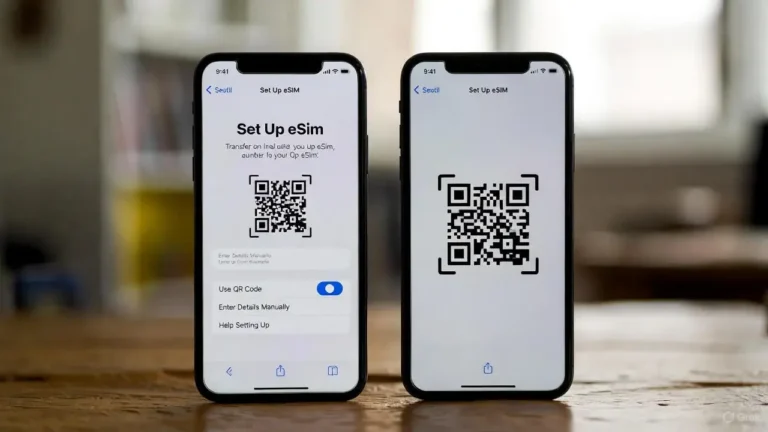
- QR code from your carrier or eSIM provider
- Carrier app activation (install eSIM directly inside the carrier app)
- Carrier push activation (carrier provisions the eSIM after verification)
After activation, set:
- Default line for Voice
- Default line for iMessage/FaceTime
- Line for Cellular Data (important to avoid roaming)

Tasnima Tabassum Ema is the Founder and Lead Data Analyst at eSIM Expart. Driven by her own costly roaming nightmares, she built the site to save fellow travelers money. She specializes in rigorous, real-world testing and calculating the true cost per Gigabyte ($/GB) to ensure you always get the cheapest, most reliable connection.