How to Transfer eSim?
Transfer eSIM usually means moving your mobile plan from one phone to another without a plastic SIM. In 2026, the fastest method is iPhone eSIM Quick Transfer (device-to-device), and the most universal fallback is a carrier QR code / manual activation when Quick Transfer is unavailable.
Quick summary (2026)
| Transfer type | Best method | What you need |
|---|---|---|
| iPhone to iPhone | Transfer From Nearby iPhone | Old iPhone nearby, Wi‑Fi + Bluetooth on |
| During new iPhone setup | Quick Start cellular transfer | Both phones present during setup |
| Any phone (fallback) | QR code / manual entry | New QR or SM-DP+ details from carrier |
What “transfer eSIM” actually means
There are two common meanings:
- Move an eSIM line to a new phone: your number (or data plan) activates on the new phone and is usually deactivated on the old one afterward.
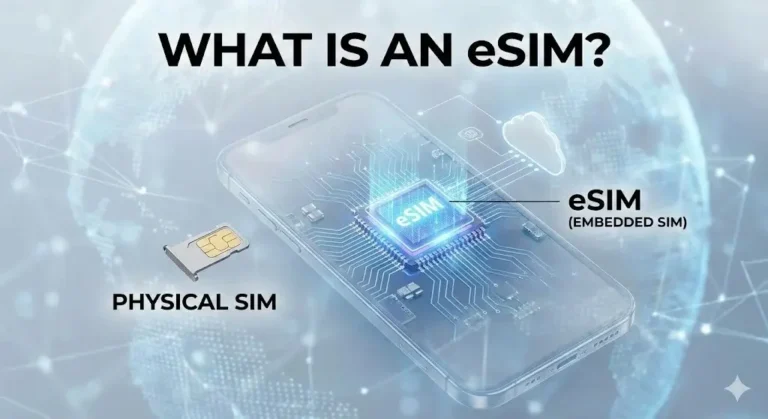
- Convert physical SIM to eSIM (same phone): you keep the same number, but replace the plastic SIM with an eSIM profile.
Helpful video (setup overview):
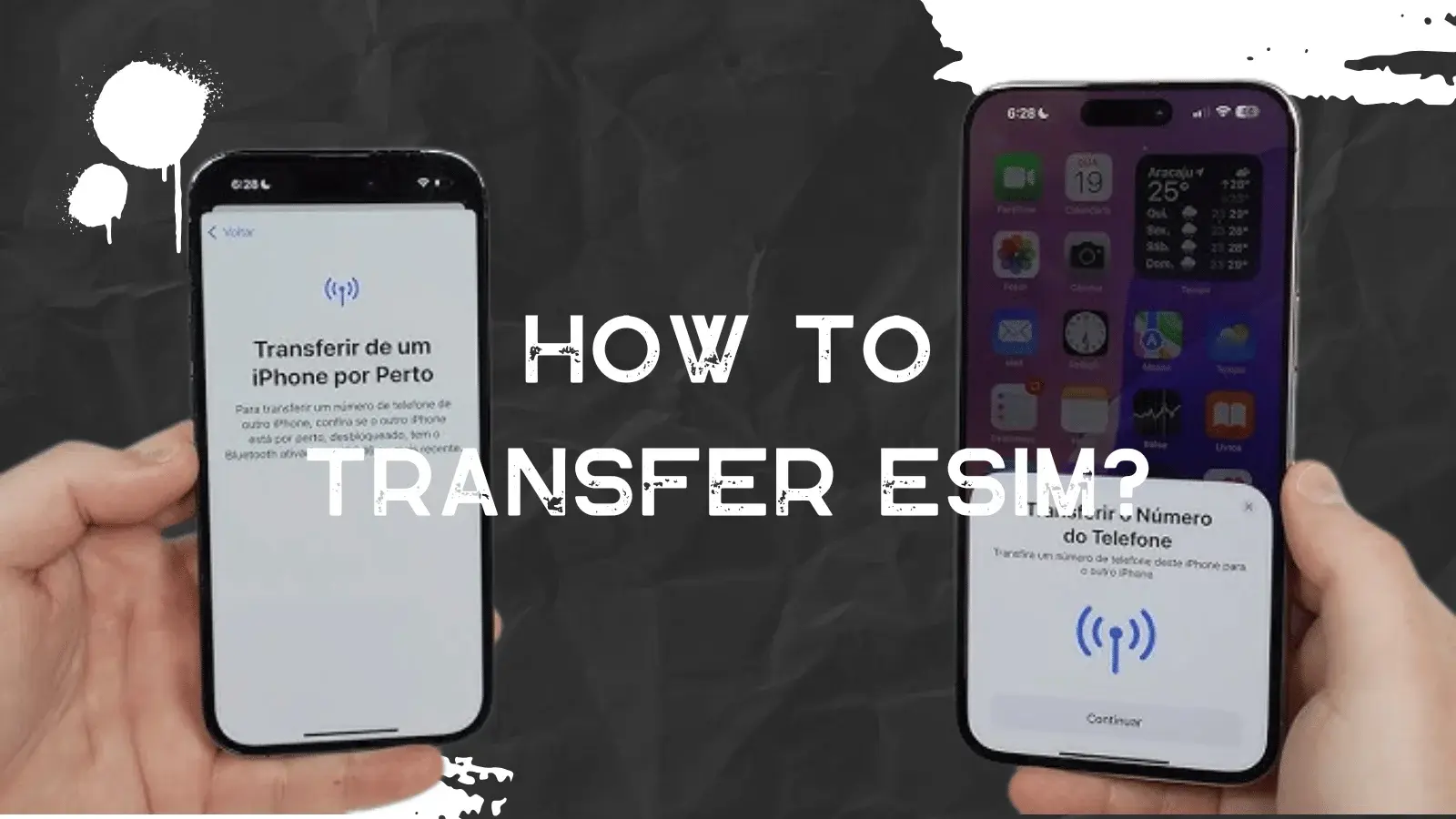
How to transfer eSIM from iPhone to iPhone (Quick Transfer)
Use this when you still have the old iPhone and both devices are with you.
Steps (most common path):
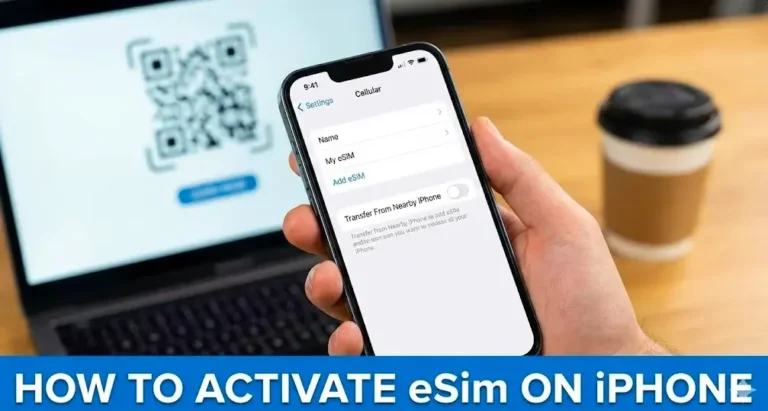
- New iPhone: Settings > Cellular (Mobile Data) > Add eSIM
- Tap Transfer From Nearby iPhone
- Old iPhone: approve the prompt and finish verification
- Wait for signal on the new phone before removing anything from the old phone
Key rules (prevents failure):
- Do not delete the eSIM on the old phone before the new phone shows bars and can call.
- Keep both devices close, connected to Wi‑Fi, and with Bluetooth enabled.
Video (transfer eSIM iPhone to iPhone):
https://www.youtube.com/watch?v=bOJmIr4a7pk
How to transfer eSIM while setting up a new iPhone (Quick Start)
If you’re migrating to a new iPhone, Quick Start often offers a cellular transfer option during setup.
- Choose the cellular transfer option when prompted
- Confirm on the old iPhone
- Finish activation before leaving setup
Video (Quick Start transfer context):
If Quick Transfer is missing: QR code or manual activation (works for most carriers)
If your carrier does not support Quick Transfer, or you no longer have the old phone, use a reissue/QR method:
- Ask your carrier/provider for a new eSIM QR code (often single-use)
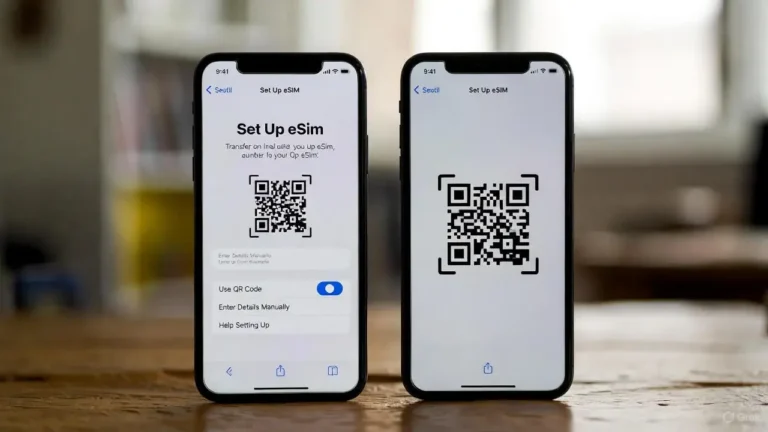
- iPhone: Settings > Cellular > Add eSIM > Use QR Code
- If offered: Enter Details Manually (SM-DP+ address + activation code)
Physical SIM to eSIM conversion (same iPhone)
If you want to remove the physical SIM but keep the same number:
- Go to Settings > Cellular
- Tap your line
- Look for Convert to eSIM (not all carriers show this)
Video (SIM to eSIM conversion examples):
https://www.youtube.com/watch?v=CA1gFJokdFY
Troubleshooting after transfer (data, hotspot, APN)
If the eSIM installs but data does not work, check these in order:
- Cellular Data line: make sure the right line is selected for data
- Data Roaming: some travel eSIMs require it ON, many home carriers do not
- APN: only change APN if your provider gives a specific APN value
- Hotspot (tethering): some eSIM plans block it, so test hotspot after activation and confirm plan rules
If the eSIM option is missing entirely:
- Update iOS
- Confirm the phone model/region supports eSIM
- Confirm the device is not carrier-locked
Want this rewritten for a specific intent: “transfer eSIM to new iPhone 16”, “transfer eSIM to Android”, or “transfer travel eSIM between devices”?

Tasnima Tabassum Ema is the Founder and Lead Data Analyst at eSIM Expart. Driven by her own costly roaming nightmares, she built the site to save fellow travelers money. She specializes in rigorous, real-world testing and calculating the true cost per Gigabyte ($/GB) to ensure you always get the cheapest, most reliable connection.