
How to Transfer eSim from One iPhone to Another
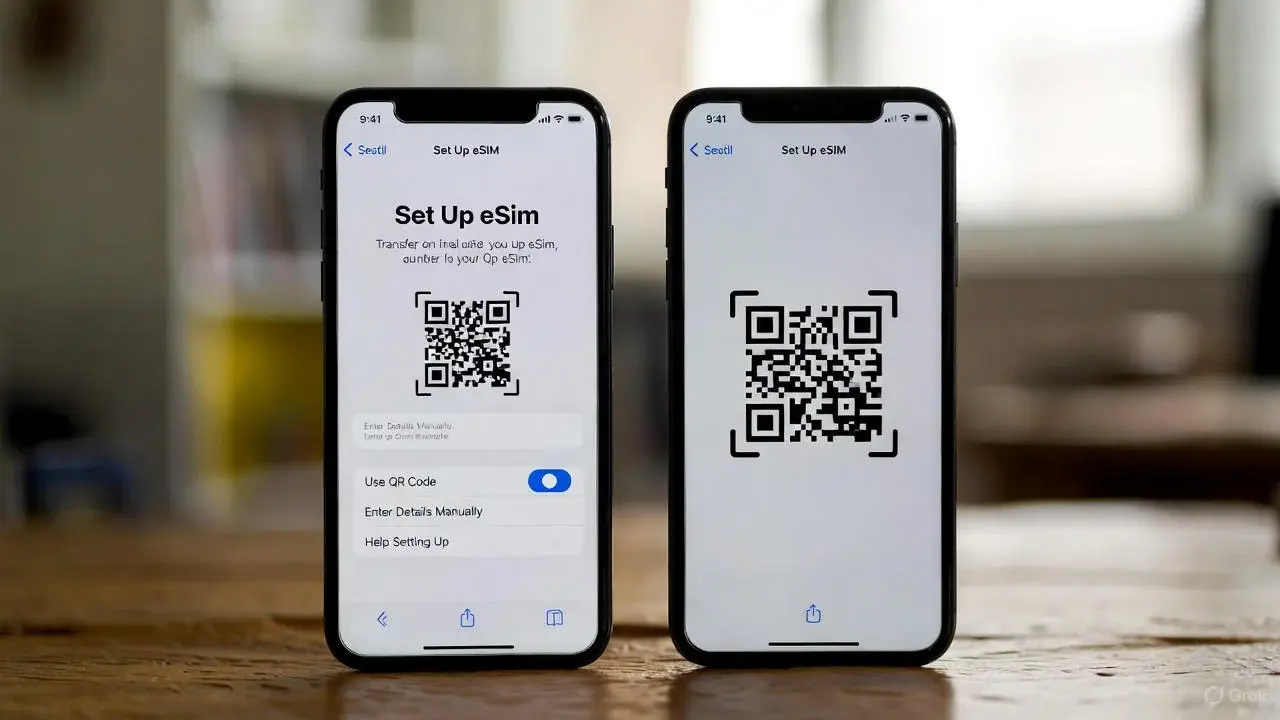
Transfer eSIM from one iPhone to another using eSIM Quick Transfer during setup or post-setup via Settings for iOS 18+ devices. This method deactivates the old eSIM automatically without carrier contact for supported plans. Keep both iPhones nearby with Bluetooth on and 30%+ battery for success.
| Step | Action | Notes |
|---|---|---|
| 1 | Update both iPhones to iOS 18.4+ | Check Settings > General > Software Update |
| 2 | Sign in with same Apple ID | Ensures seamless transfer |
| 3 | Enable Bluetooth/Wi-Fi | Devices must be close (within 1 meter) |
What Requirements Apply for eSIM Transfer?
Both iPhones need iPhone XS or later models (iPhone 14 US versions eSIM-only). Carrier support required for Quick Transfer; unlocked phones work best for travel eSIMs like Orbitmobile. Set device passcode and keep phones unlocked during process.
- Battery: 30%+ on both
- Network: Wi-Fi or hotspot connected
- Verification: Face ID or Touch ID confirms transfer
How Do You Transfer During New iPhone Setup?
Place old and new iPhones side-by-side during initial setup. Select Transfer from Nearby iPhone when prompted under Cellular setup. Tap Transfer on old iPhone after biometric confirmation; new device activates in 2-5 minutes.
How Do You Transfer eSIM After Setup?
On new iPhone: Settings > Cellular > Add eSIM > Transfer From Nearby iPhone. Old iPhone shows confirmation prompt: select line and tap Transfer. Test with call or data; old eSIM deactivates automatically.
Does Orbitmobile Support iPhone eSIM Transfers?
Orbitmobile requires manual reactivation: delete eSIM on old iPhone via Settings > Cellular > Delete eSIM. Get new QR code or SM-DP+ from Orbitmobile dashboard and scan on new device. Supports 190+ countries with plans from $5/1GB.
What If eSIM Transfer Fails?
Restart both devices and retry; reset network settings via Settings > General > Transfer or Reset > Reset > Reset Network Settings. Manually reissue via carrier app or QR code if unsupported. Contact carrier for plan-specific APN: tethering works post-transfer at 5G speeds up to 1Gbps on partners like Docomo.
| Issue | Fix | Time |
|---|---|---|
| No prompt | Check Bluetooth proximity | 1 min |
| Activation stuck | Reset network settings | 2 min |
| Carrier error | Request new QR code |
Useful Video Guides
How To Transfer eSIM from one iPhone to Another iPhone:
https://www.youtube.com/watch?v=bOJmIr4a7pk
iPhone eSIM Transfer Guide (with 2025 iPhone 17 Pro):
https://www.youtube.com/watch?v=EV2UuiPYQZM\
iOS 18 eSIM Setup Made EASY:
https://www.youtube.com/watch?v=OORYi3ynAPA
This process ensures an efficient transfer of your eSIM cellular plan between iPhones while leveraging Apple's security features and minimizing manual carrier interactions for compatible providers. For providers without quick transfer support, manual QR code activation remains the fallback method, as exemplified by Orbitmobile's flexible global plans.